
Show product-specific CMS blocks on the Magento 2 checkout success page



The checkout success page is the one moment you know the customer is still looking. A rule’s success-page action puts a CMS static block there, only for orders that contain a matching SKU: a warranty registration link, a manual download, a note that the battery ships separately.
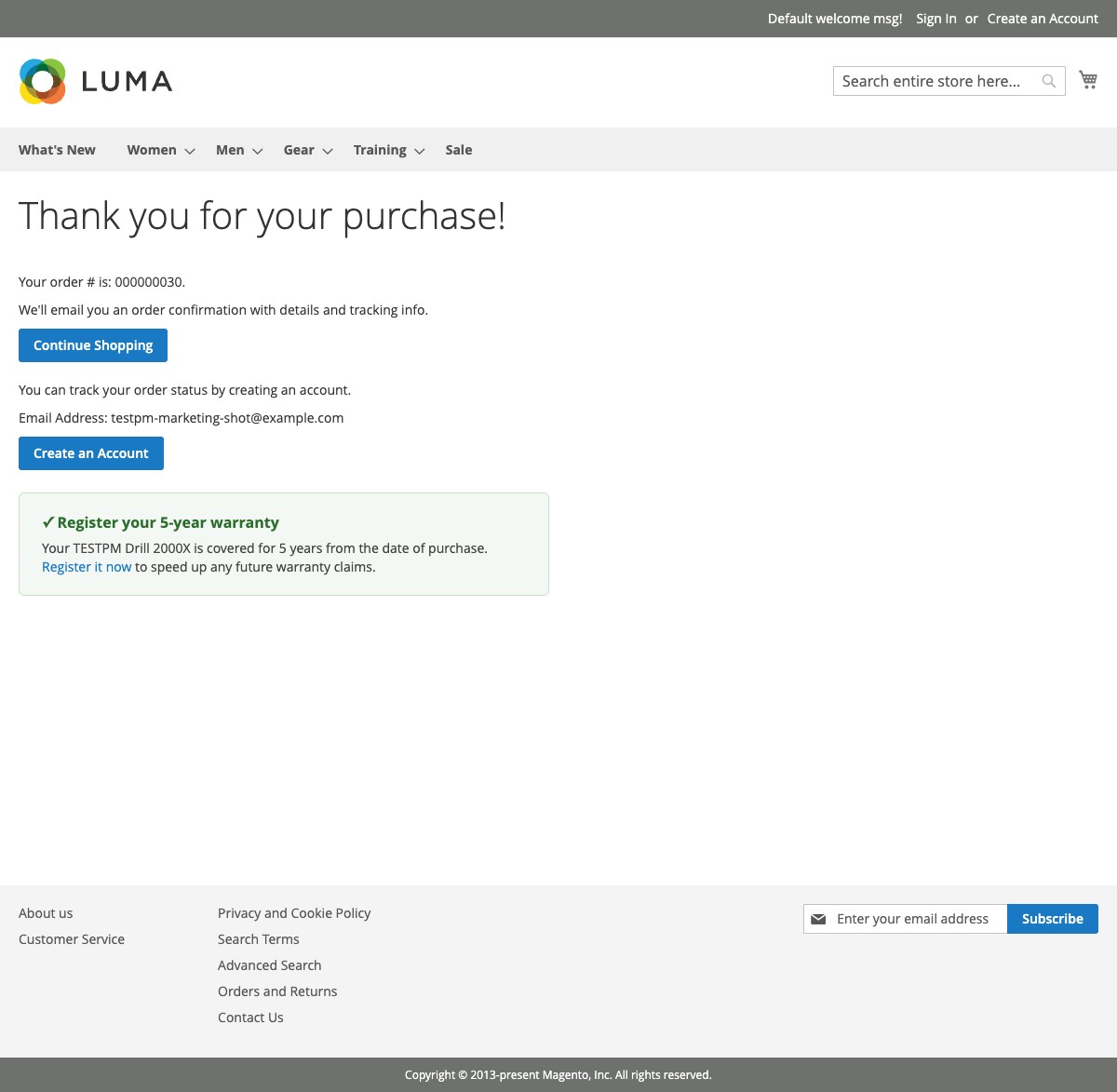
Set it up
- On the rule form, turn on Show Block on Success Page.
- Pick a block in Success Block. Only active CMS blocks are listed.
- Save the rule. The next matching order shows the block.
To build a block without leaving the rule, click + Create New Block. It opens the real CMS block editor, including Page Builder or the WYSIWYG editor, in a modal. Edit opens the selected block the same way. Both save through the standard CMS block save, so the result is an ordinary block in Content > Blocks, not a copy. The Success Block dropdown refreshes without a page reload, and a failed save, such as a duplicate identifier, reports the reason.
The block action is independent of the email action. A rule can show a block at checkout and email the customer on shipment, or do only one of the two.
How blocks render
- Several matches stack. If multiple rules match the order, all of their blocks render, in ascending rule ID order.
- No match, no markup. A non-matching order renders nothing at all, not an empty wrapper.
- Full CMS processing.
{{widget}},{{store url}}, and media URLs work as in any other CMS block. Content is not escaped; it is trusted admin content, the same as core block rendering. - Disabled or deleted blocks render as nothing, not an error.
- Multi-address checkout is supported: the multishipping success page shows the blocks for the orders just placed.
Each matched block is wrapped in a bare <div class="ocmlabs-product-messaging-block"> with no styling, so the block’s own content controls the look.
Luma and Hyva
Output is server-rendered HTML from your CMS block. There is no JavaScript, RequireJS, or UI component involved, so it renders identically on Luma and Hyva with no compatibility module. On Hyva, put Tailwind classes in the block content as you would for any other block.
Evaluated live, not logged
Blocks are matched against the order on every success page view. There is no queue, no log, and no impression tracking. Refreshing the success page re-runs the match and shows the same blocks; navigating away and back, or opening the URL with no active checkout session, shows nothing. That is by design: if the information needs a durable copy, give the same rule an email action.
Blocks appear on the checkout success page only, not on the customer’s order view page or inside order emails.
Turning it off
Stores > Configuration > OCM Labs > Product Messaging > Success Page > Enable Checkout Success-Page Blocks switches off every success-page block without affecting emails. The module-wide Enabled switch turns off both.