
Manage support tickets from the Magento admin grid under Stores > Support > Support Tickets



All ticket management happens under Stores > Support > Support Tickets in the Magento admin panel. The grid lists every ticket submitted across every store view, and the edit page combines ticket metadata with the full customer-admin conversation thread.
The ticket grid
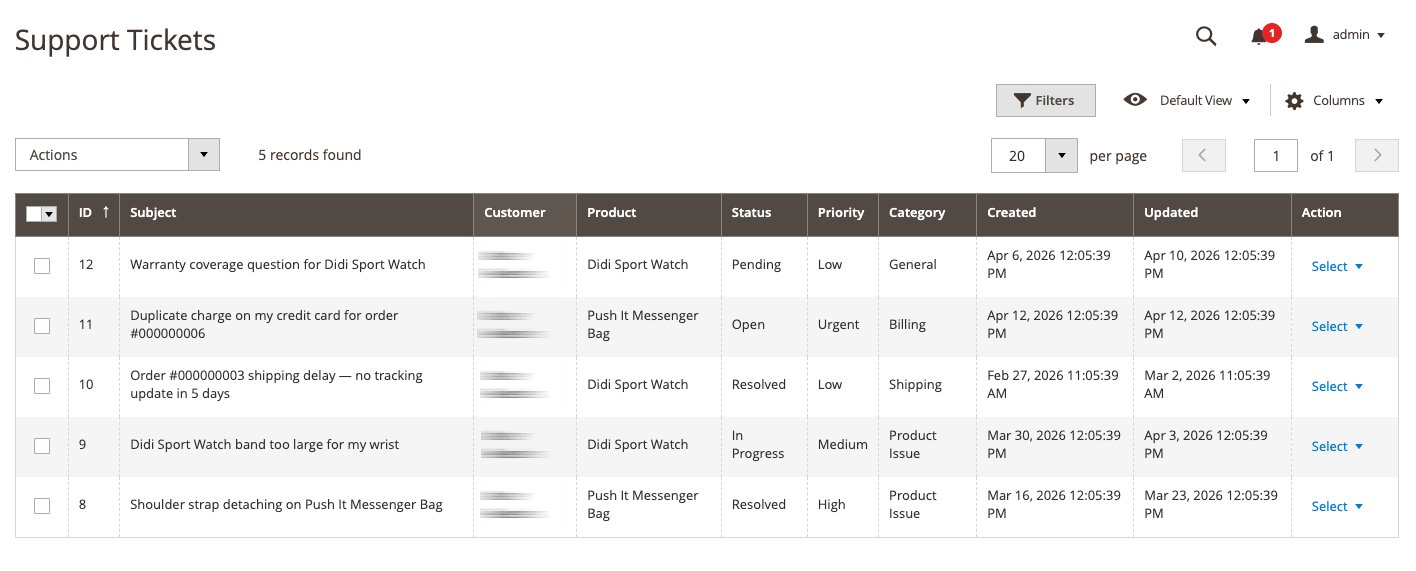
The grid displays the following columns for each ticket:
| Column | Description |
|---|---|
| ID | Auto-assigned ticket ID |
| Subject | The ticket title as submitted by the customer |
| Customer | The full name of the customer who opened the ticket |
| Product | The product associated with the ticket, if any |
| Status | Current ticket status: Open, Pending, In Progress, or Resolved |
| Priority | Urgency level: Low, Medium, High, or Urgent |
| Category | Issue category: Billing, Shipping, Product Issue, General, or Other |
| Created At | Date and time the ticket was submitted |
| Updated At | Date and time of the last change to the ticket or a comment |
| Action | View link to open the ticket edit page |
The grid supports filtering on every column. Use the Status filter to pull your Open or Pending queue. The Customer and Product filters find all tickets associated with a specific account or item. Created At and Updated At both support date-range filtering.
Click a row’s View link to open the full ticket edit page.
Viewing and editing a ticket
The ticket edit page is split into two sections: Ticket Details at the top and the full Comments thread below.
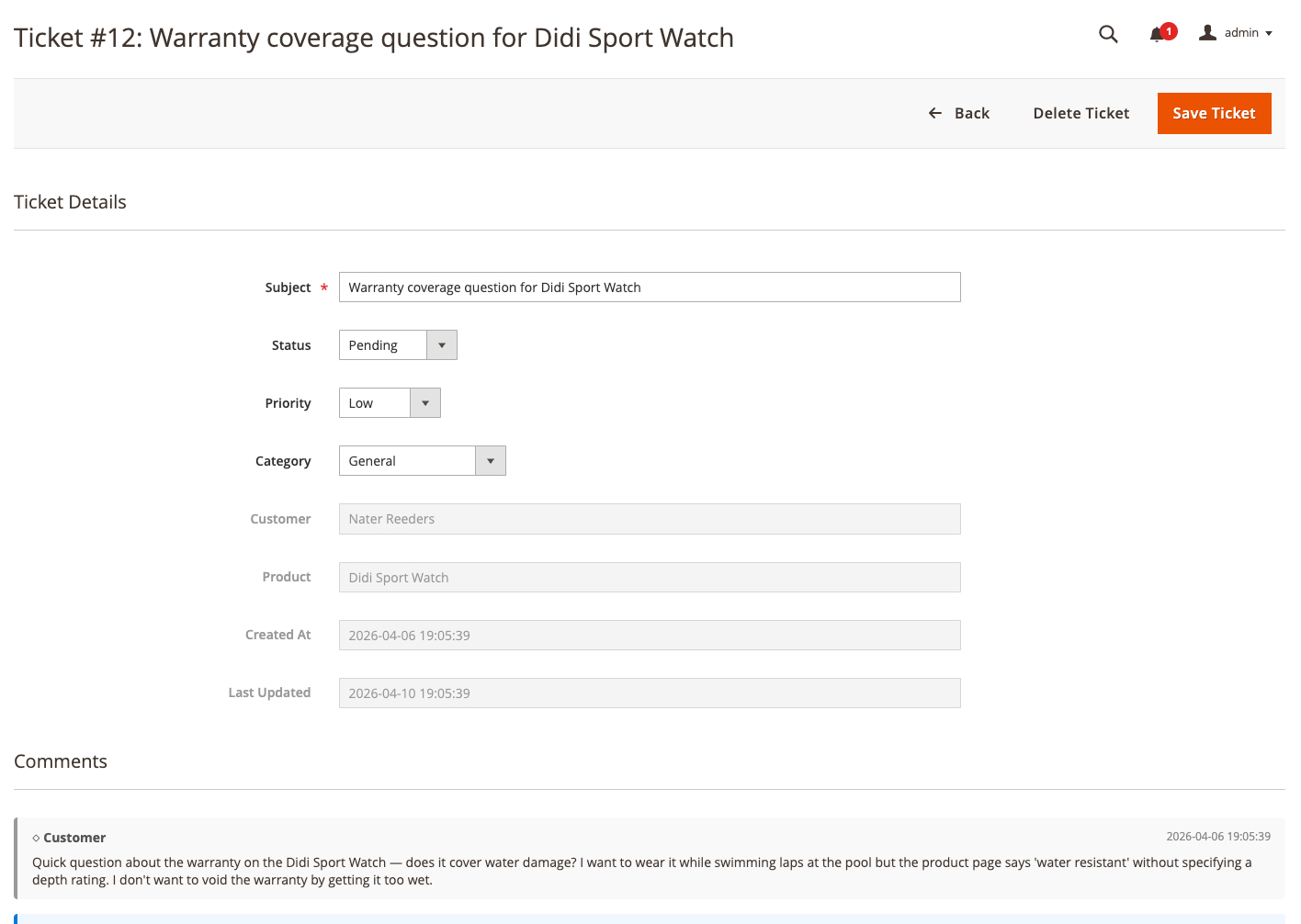
Ticket Details fields
Subject (editable) The ticket title. Edit this if the customer’s original subject is unclear or needs to be standardized. Changes are saved when you click Save.
Status (select) The current state of the ticket. Options:
- Open - New or re-opened ticket awaiting response
- Pending - Waiting for the customer to reply
- In Progress - Admin is actively working on it
- Resolved - Issue closed
Status updates automatically based on who replies last (see Status Workflow), but you can set it manually at any time from this field.
Priority (select) Urgency level: Low, Medium, High, or Urgent. Set by the customer at creation time but overridable by admins.
Category (select) Issue classification: Billing, Shipping, Product Issue, General, or Other. Editable here even if the customer did not set one.
Customer Name (link) The name of the customer who submitted the ticket. Rendered as a link that opens the customer’s account page in a new browser tab so you can jump into their account history without losing the ticket view.
Product Name (read-only) The name of the associated product, if the customer linked one when creating the ticket.
Created At / Last Updated (read-only) Timestamps for when the ticket was submitted and when it was last modified. Shown as plain text rows.
Click Save in the top-right to save any changes to the Ticket Details fields. Save does not affect the comment thread.
The comment thread
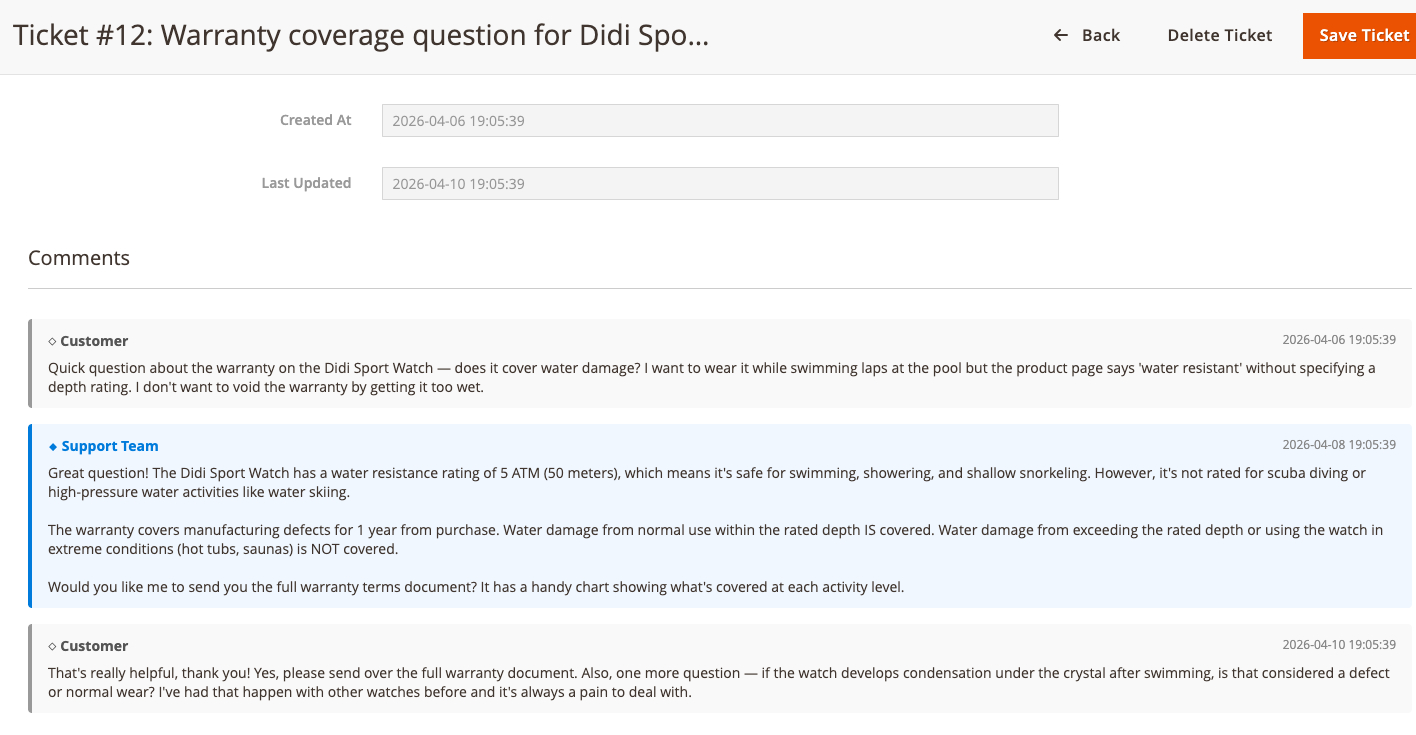
Below the Ticket Details section, the full conversation history is displayed chronologically. Each message shows the author type (Customer or Admin), the author’s name, the timestamp, and the message body.
Adding an admin reply: Type your reply in the Add Reply field at the bottom of the comment thread and click Submit. This saves the comment and automatically changes the ticket status to In Progress if it was Open or Pending. A notification email is sent to the customer.
Bulk actions
Select multiple tickets from the grid using the checkboxes on the left. Open the Actions dropdown to apply a bulk operation:
Set Status Opens a sub-menu to choose a status (Open, Pending, In Progress, Resolved). Applies the selected status to all checked tickets at once. Useful for triaging a queue or marking resolved tickets in bulk.
Delete
Permanently deletes all selected tickets and their comment threads. A confirmation dialog appears before the deletion runs. Requires the OCMLabs_SupportTicket::tickets_delete ACL permission.
Deleting a ticket
Bulk delete is the only UI path for deletion (see above).
Deletion cascades to all comments - if you want to preserve the conversation history, set the status to Resolved instead of deleting.
Tips
- Triage with bulk status. At the start of a support session, filter to Open tickets, select all, and bulk-set to In Progress so your team knows they have been picked up.
- Category filtering routes work. If different staff handle Billing vs Shipping issues, bookmark filtered grid views for each category.
- Priority is customer-set but admin-overridable. Customers default to Medium if they do not pick one. Bump Urgent tickets manually if something gets misfiled.
- Admin replies trigger status changes. You do not need to manually update Status every time you reply. Saving an admin comment moves the ticket to In Progress on its own.
- Customer Name is a jump-off. Clicking the customer name opens their account page in a new tab, so you can review order history alongside the ticket without navigating away.